Foundation Sponsor
Derive is a sponsor of Hummingbot Foundation, so when you use Hummingbot to run bots on Derive, you're supporting the Foundation and our mission to democratize algo trading with open source software. To help support us, create an account using our Derive referral link. Thanks for your help! 🙏
Hackathon Sponsor
Derive is a sponsor of the Agent Builders Cup, a Hummingbot strategy hackathon with a $20,000 total prize pool. Build an agent that trades on Derive and apply to the Derive team at botcamp.xyz/hackathons!
🛠 Connector Info
- Exchange Type: Decentralized Exchange (DEX)
- Market Type: Central Limit Order Book (CLOB)
| Component | Status | Connector Version | V2 Strategies | Notes |
|---|---|---|---|---|
| 🔀 Spot Connector | ✅ | v2.1 | Yes | Supports MARKET order type |
| 🔀 Perp Connector | ✅ | v2.1 | Yes | Supports testnet |
| 🕯 Spot Candles Feed | ||||
| 🕯 Perp Candles Feed | ||||
| 📓 Connector Guide | ✅ |
ℹ️ Exchange Info
- Website: https://www.derive.xyz
- CoinMarketCap: https://coinmarketcap.com/currencies/derive/
- CoinGecko: https://www.coingecko.com/en/coins/derive
- Fees: https://docs.derive.xyz/reference/fees-1
- Supported Countries: https://www.derive.xyz/terms-of-use#:~:text=restricted%20region
- Referral link: https://www.derive.xyz/invite/7SA0V
🔑 About Rate Limits
-
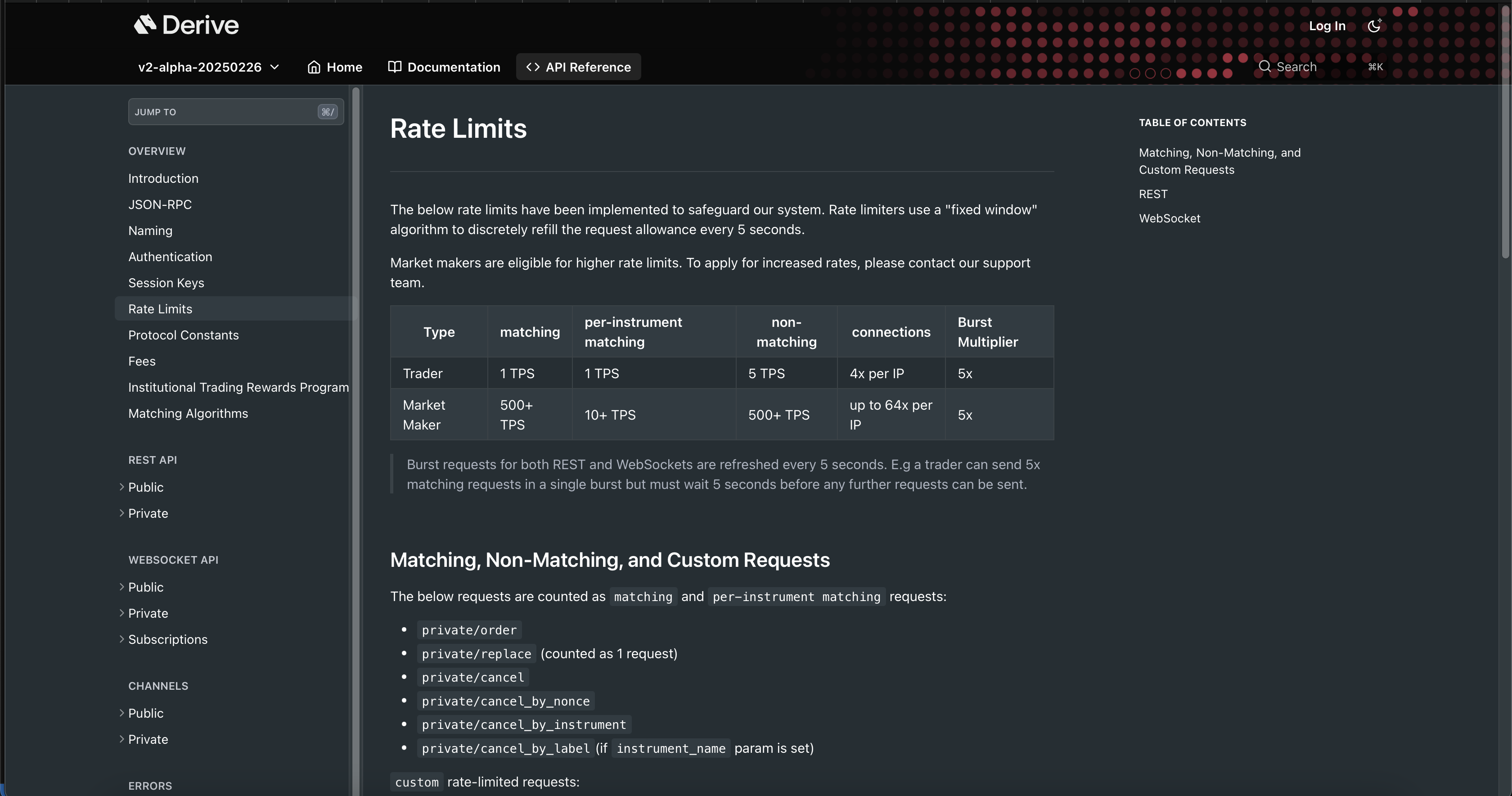
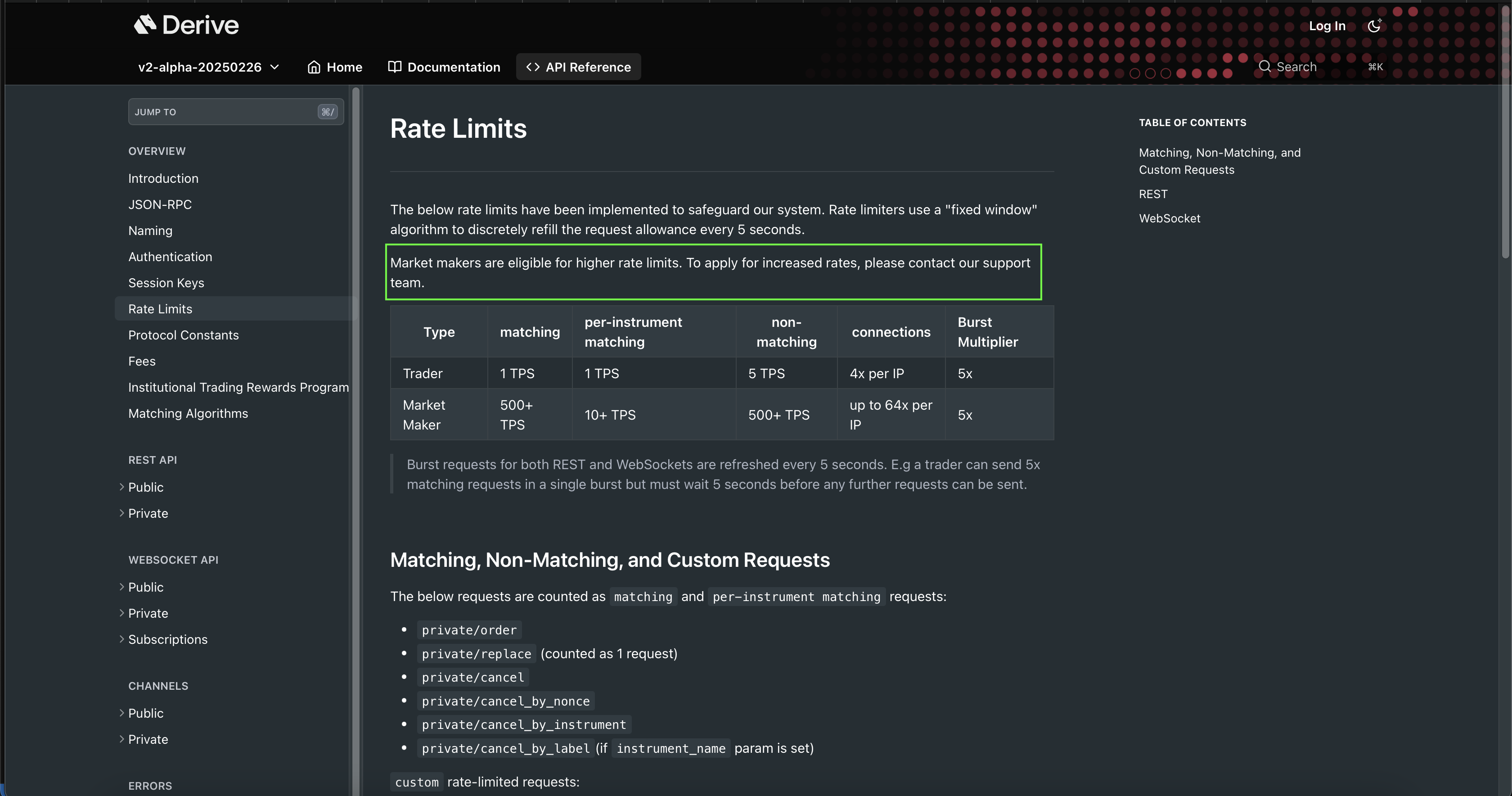
The system enforces rate limits using a fixed window algorithm, replenishing the request allowance every 5 seconds to maintain system stability. Market makers can access higher rate limits upon request by contacting the support team.
-
Derive Rate Limit: https://docs.derive.xyz/reference/rate-limits
Rate Limits
The below rate limits have been implemented to safeguard our system. Rate limiters use a "fixed window" algorithm to discretely refill the request allowance every 5 seconds.
Market makers are eligible for higher rate limits.
To apply for increased rates, please contact our support team.
| Type | Matching | Per-Instrument Matching | Non-Matching | Connections | Burst Multiplier |
|---|---|---|---|---|---|
| Trader | 1 TPS | 1 TPS | 5 TPS | 4x per IP | 5x |
| Market Maker | 500+ TPS | 10+ TPS | 500+ TPS | up to 64x per IP | 5x |
Note:
Burst requests for both REST and WebSockets are refreshed every 5 seconds.
For example, a trader can send 5× matching requests in a single burst but must wait 5 seconds before any further requests can be sent.
Matching, Non-Matching, and Custom Requests
The below requests are counted as matching and per-instrument matching requests:
private/orderprivate/replace(counted as 1 request)private/cancelprivate/cancel_by_nonceprivate/cancel_by_instrumentprivate/cancel_by_label(ifinstrument_nameparam is set)
Custom Rate-Limited Requests
private/cancel_all– 1 TPSprivate/cancel_by_label– 10 TPS (ifinstrument_nameparam is NOT set)
All requests outside of the above are counted as non-matching.
REST
All non-matching requests over the REST API are rate limited per IP at a flat 10 TPS with a 5x burst.
If the limit is crossed, a 429 Too Many Requests response is returned.
🔑 How to Connect
Generate API Keys
Open https://www.derive.xyz. Derive supports wallets such as MetaMask, Rabby, Coinbase Wallet, and Ledger.
-
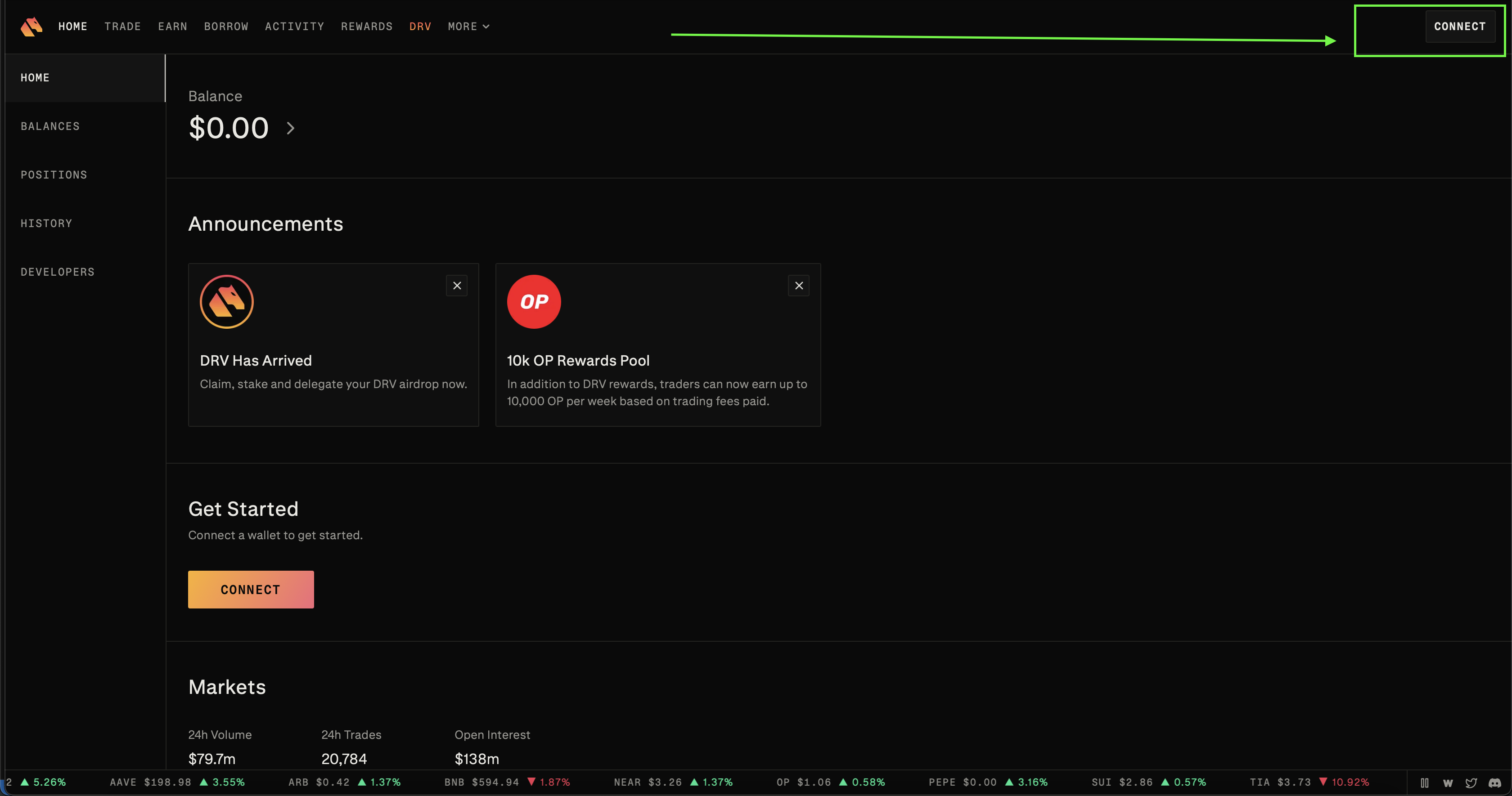
Click Connect at the upper right side of the page
-
In the wallet picker, select the wallet you want to use (for example, MetaMask)
- Approve the connection in your wallet. Your wallet extension or app will open a pop-up asking you to connect this site — click Connect or Approve
- Sign the message Derive sends to verify you own the wallet
- If prompted, review the terms, check the agreement boxes, and click Agree and Continue
Your wallet address should now appear in the top-right corner.
-
At top left, click Hamburger icon to open the side bar, click Developers, click Register Session Key
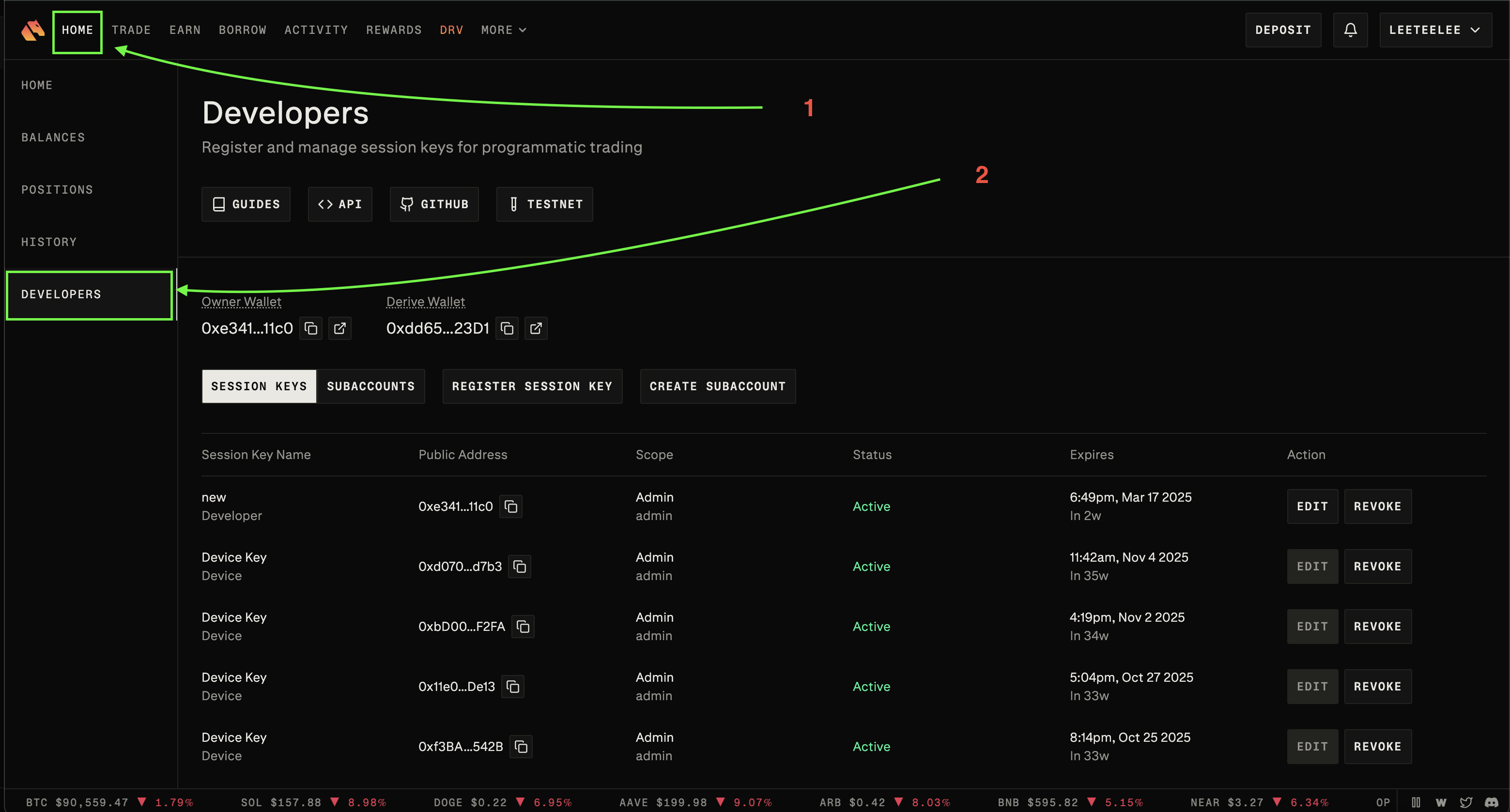
-
Enter Name, click Generate, click the Copy icon of the private key, select Admin for Scope, then click Register
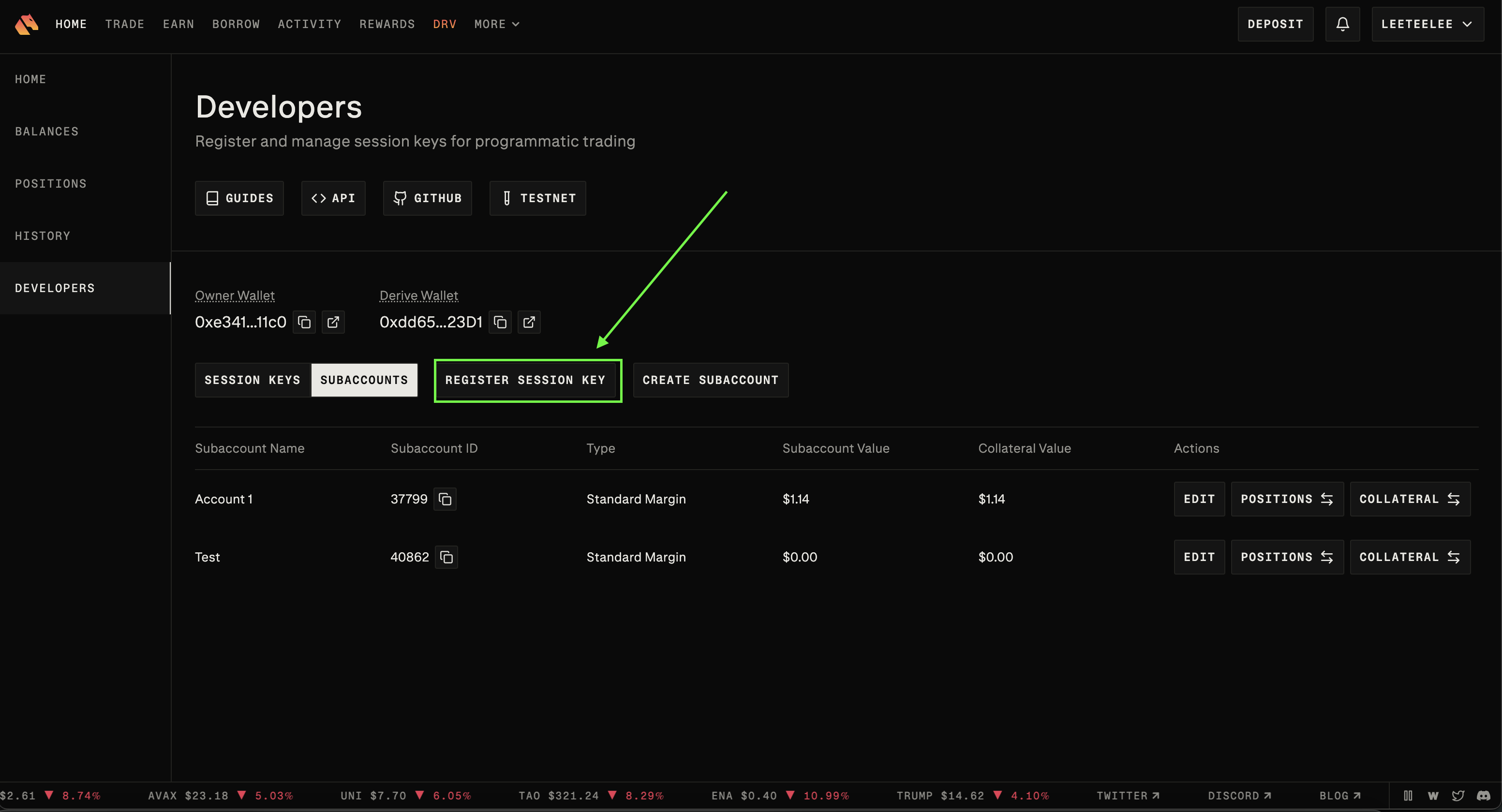
Important
Keep the private key safe and secure. Create a new session key if it is lost or compromised.
- Approve the registration in your wallet. Your wallet (for example, MetaMask) will show a signature request — click Confirm or Sign to finish registering the session key
Add Keys to Condor in Web Dashboard
You need four values from Derive: Wallet address, Session Key (private key), Subaccount ID, and Account Type.
-
Install Condor using Condor Quickstart
-
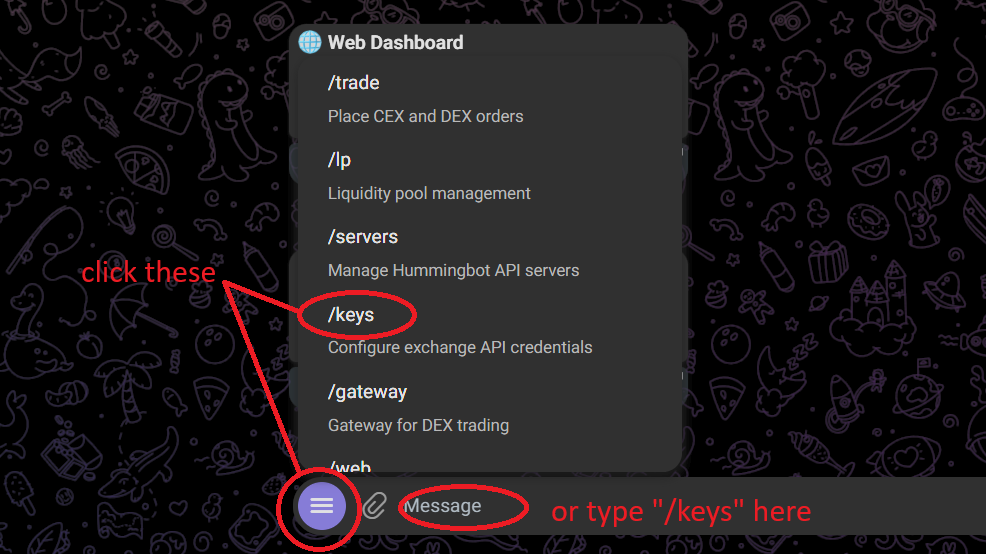
In the Telegram Condor bot, open the credentials dashboard:
- Tap the menu button (bottom left), then tap
/keys, or - Type
/keysin the message field and press Enter - Click Open Dashboard
- Tap the menu button (bottom left), then tap
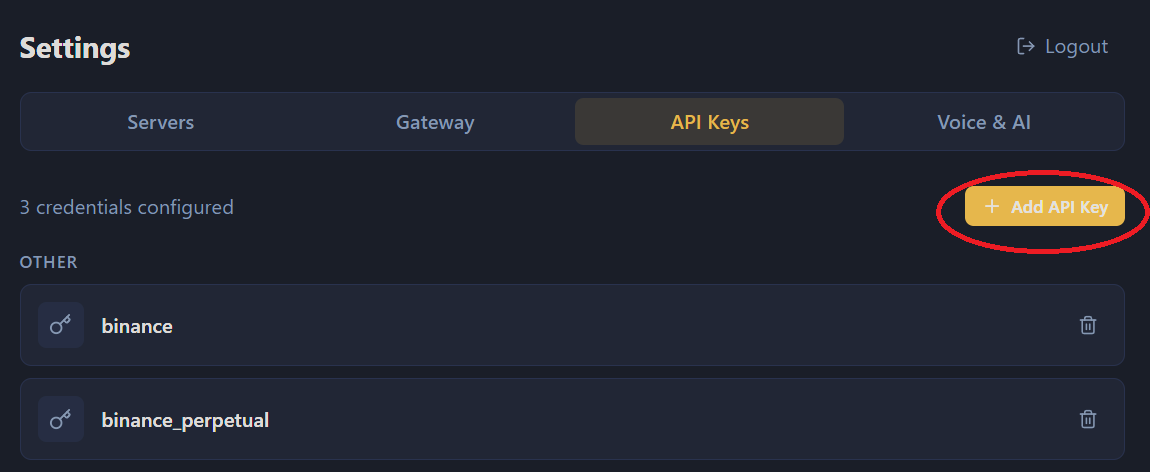
- In the dashboard, open the API Keys tab and click + Add API Key
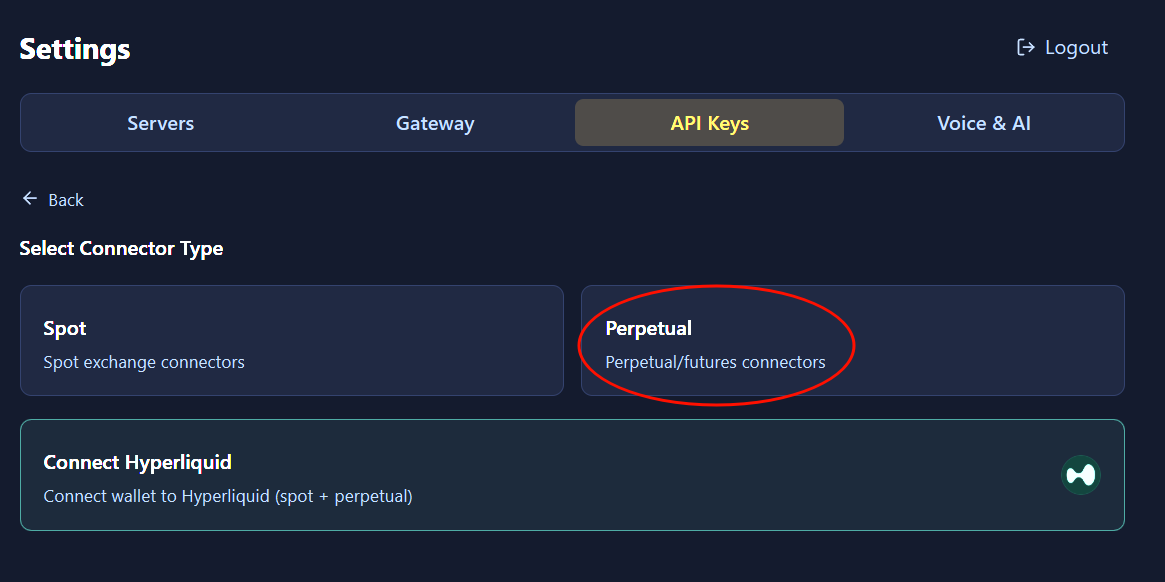
- Click Perpetual (use Spot instead if you are connecting the
derivespot connector)
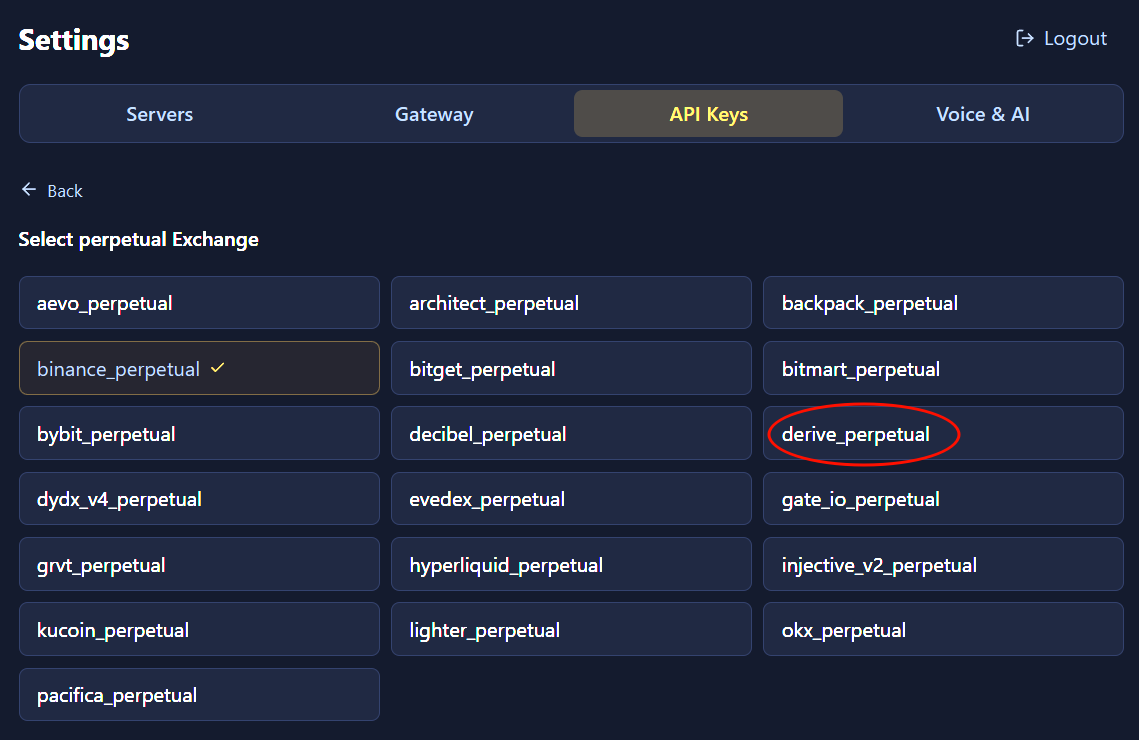
- Click derive_perpetual
-
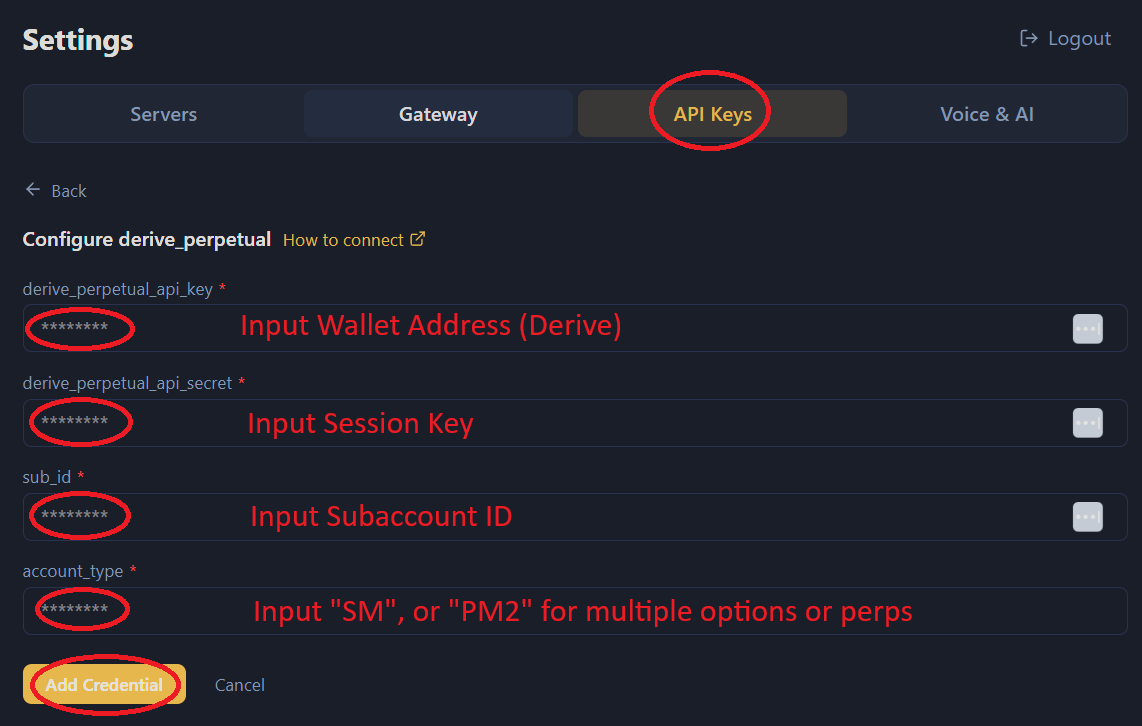
Fill in the form. The dashboard field names do not match Derive's labels — use this mapping:
Dashboard field Enter this derive_perpetual_api_key Derive Wallet address derive_perpetual_api_secret Session Key private key (copied when you registered the key) sub_id Subaccount ID account_type SM or PM2 Click Add Credential
Where to copy each value on Derive
-
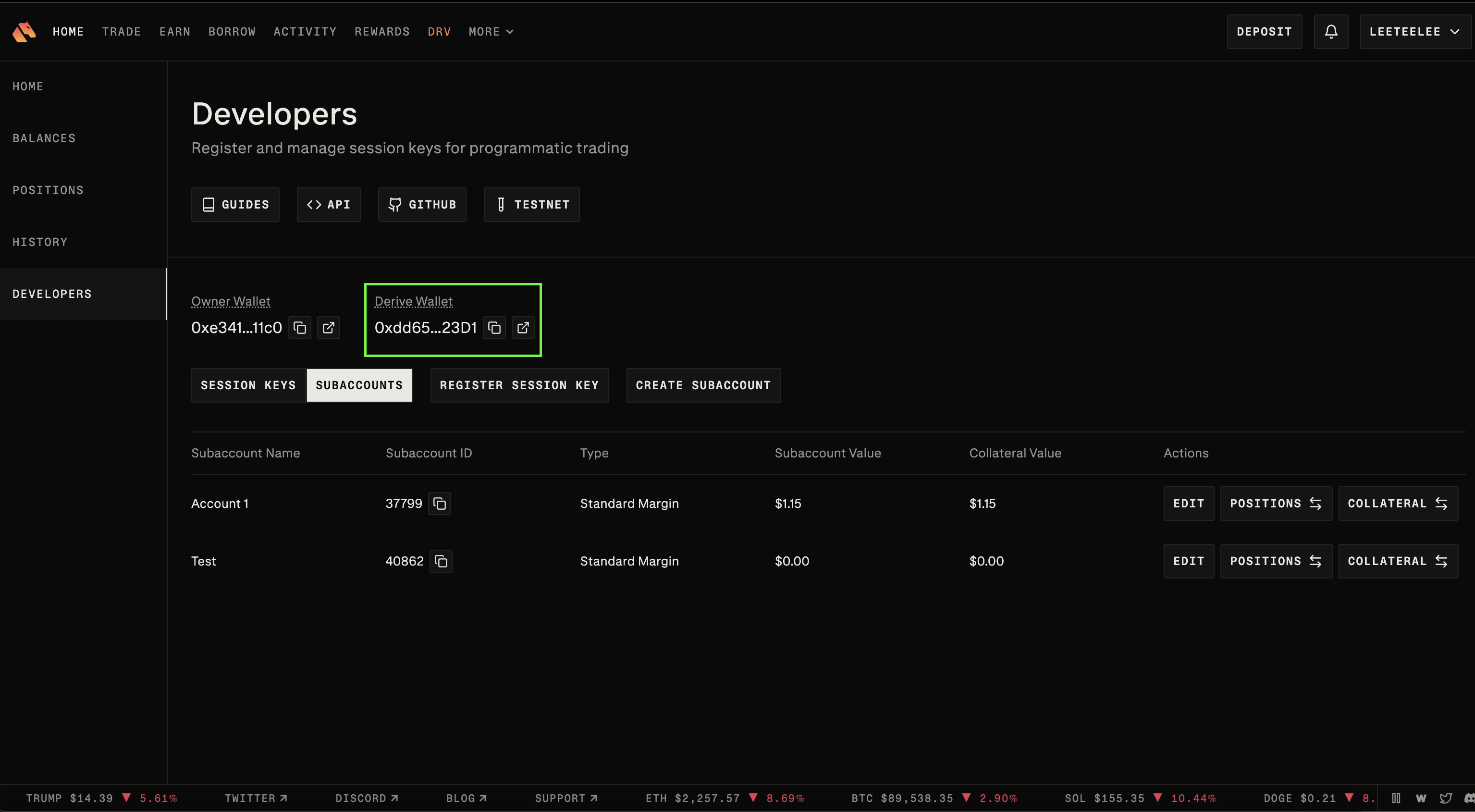
Wallet address: open the Hamburger menu → Developers → click the Copy icon next to Wallet (not Signer)
-
Session Key: the private key you copied in Generate API Keys. It is shown only once.
-
Subaccount ID: open the Hamburger menu → Subaccounts → copy the ID of the account you want to trade with
Recommended
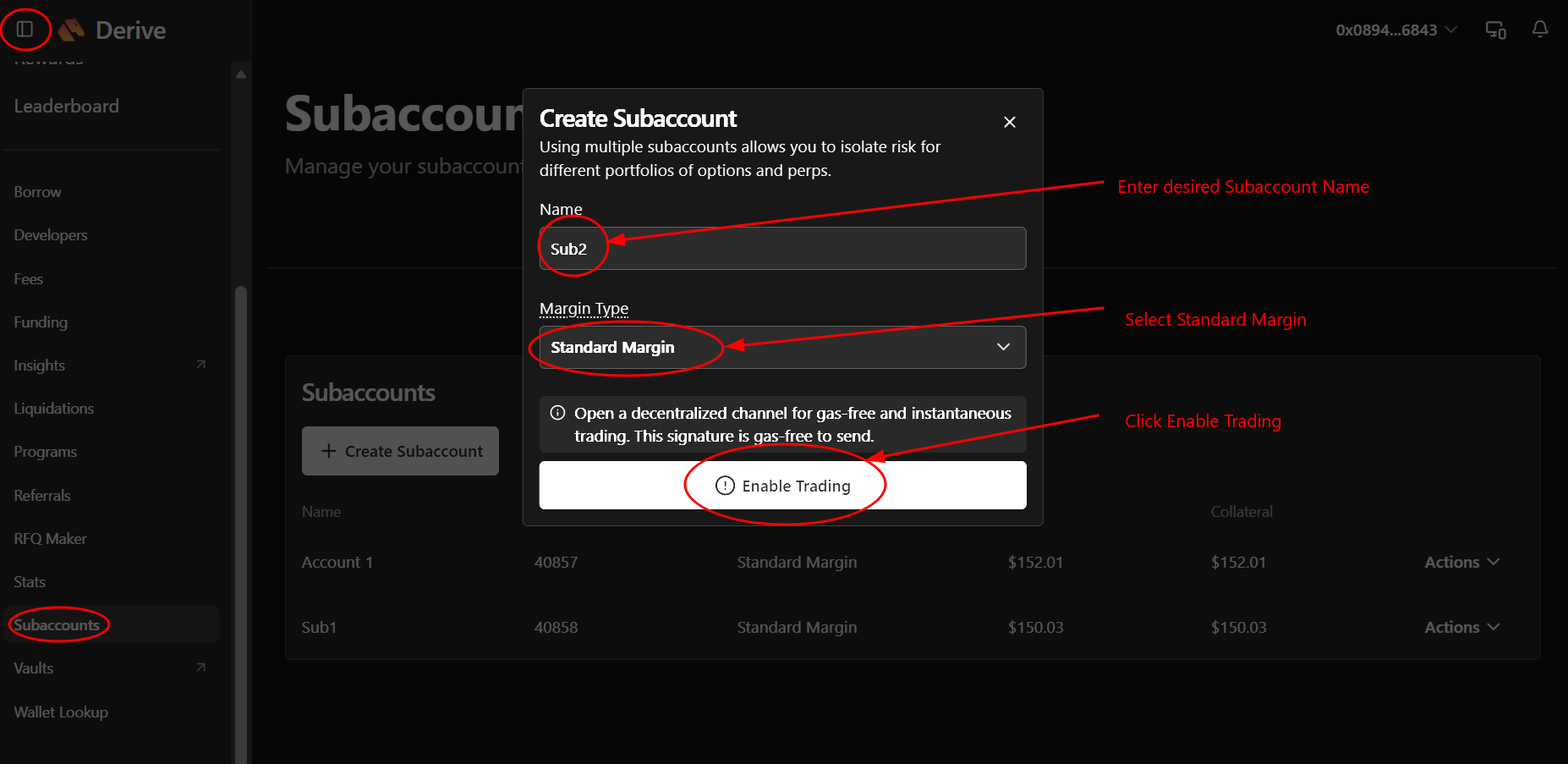
Create a new subaccount so balances are fetched and displayed correctly for both spot and perpetual. In Subaccounts, click Create Subaccount, enter a Name, select Standard Margin, then click Enable Trading.
Account Type
Use one of the following values:
| Value | Meaning | Typical use |
|---|---|---|
| SM | Standard Margin | Spot and perpetual trading |
| PM2 | Portfolio Margin | Multiple options and perps |
Add Keys to Hummingbot
From inside the Hummingbot client, run connect derive:
-
Input a Derive Wallet address
-
Input a Session Private Key

-
Input your Subaccount ID
-
Input SM or PM2 for Account Type
Account Type
Use one of the following values:
| Value | Meaning | Typical use |
|---|---|---|
| SM | Standard Margin | Spot and perpetual trading |
| PM2 | Portfolio Margin | Multiple options and perps |
>>> connect derive

Enter Your Derive Wallet address >>>

Enter your session private key >>>

Enter your Subaccount ID >>>

Enter your Derive Account Type (SM/PM2) >>>
If connection is successful:
🔀 Spot Connector
Integration to spot markets API endpoints
- ID:
derive - Connection Type: WebSocket
- API Docs: https://docs.derive.xyz
- Github Folder
Order Types
This connector supports the following OrderType constants:
LIMITLIMIT_MAKERMARKET
Paper Trading
Access the Paper Trade version of this connector by running connect derive_paper_trade instead of connect derive.
If this is not available by default, you can configure Hummingbot to add this paper trade exchange. See Adding Exchanges for more information.
🔀 Perp Connector
Integration to perpetual futures markets API endpoints
- ID:
derive_perpetual - Connection Type: WebSocket
- Github Folder
Usage
From inside the Hummingbot client, run connect derive_perpetual:
-
In Developers at sidebar, click Copy icon of Wallet
-
In Subaccounts at sidebar, click Create Subaccount button
Recommended
Create a new subaccount so balances are fetched and displayed correctly for both spot and perpetual.
-
In Create Subaccount Form, enter Name, select Standard Margin, click Enable Trading button
-
Copy the ID of the newly created Subaccount, & paste into Hummingbot client.
If connection is successful:
Order Types
This connector supports the following OrderType constants:
LIMITLIMIT_MAKERMARKET
Position Modes
This connector supports the following position modes:
- One-way
Paper Trading (Derive Testnet)
This perp exchange offers a paper trading mode: https://testnet.derive.xyz
Afer you create an account and create the API keys, you can enter them by using the connect derive_perpetual_testnet command within the Hummingbot client. Once connected, you should be able to use the testnet with the available perpetual strategies / scripts.
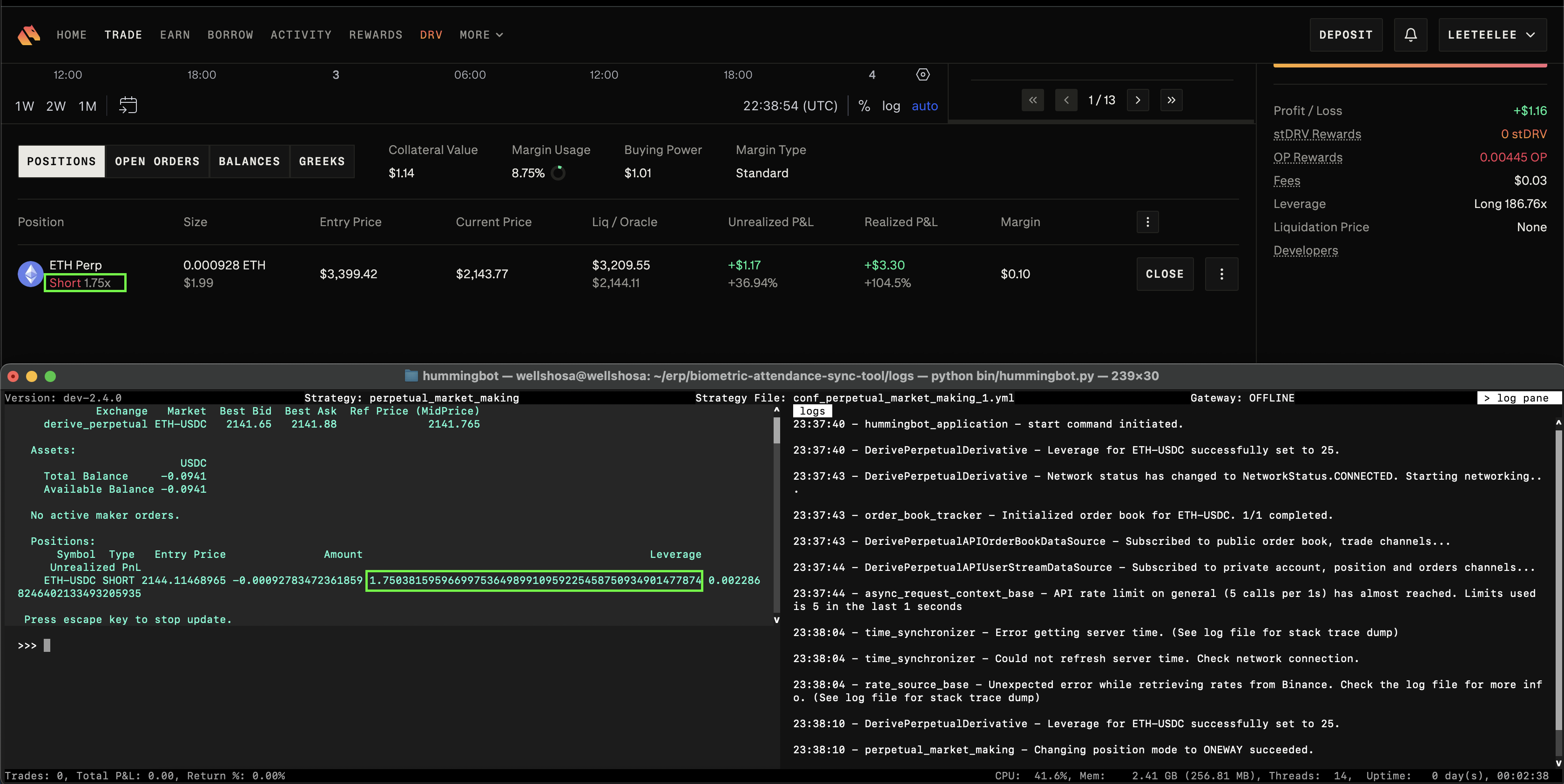
Additional Information: Perp Connector
- Note: Only for perps. Leverage of the position, defined as abs(notional) / collateral net of options.
-
Derive Leverage: https://docs.derive.xyz/reference/private-get_positions#:~:text=leverage
-
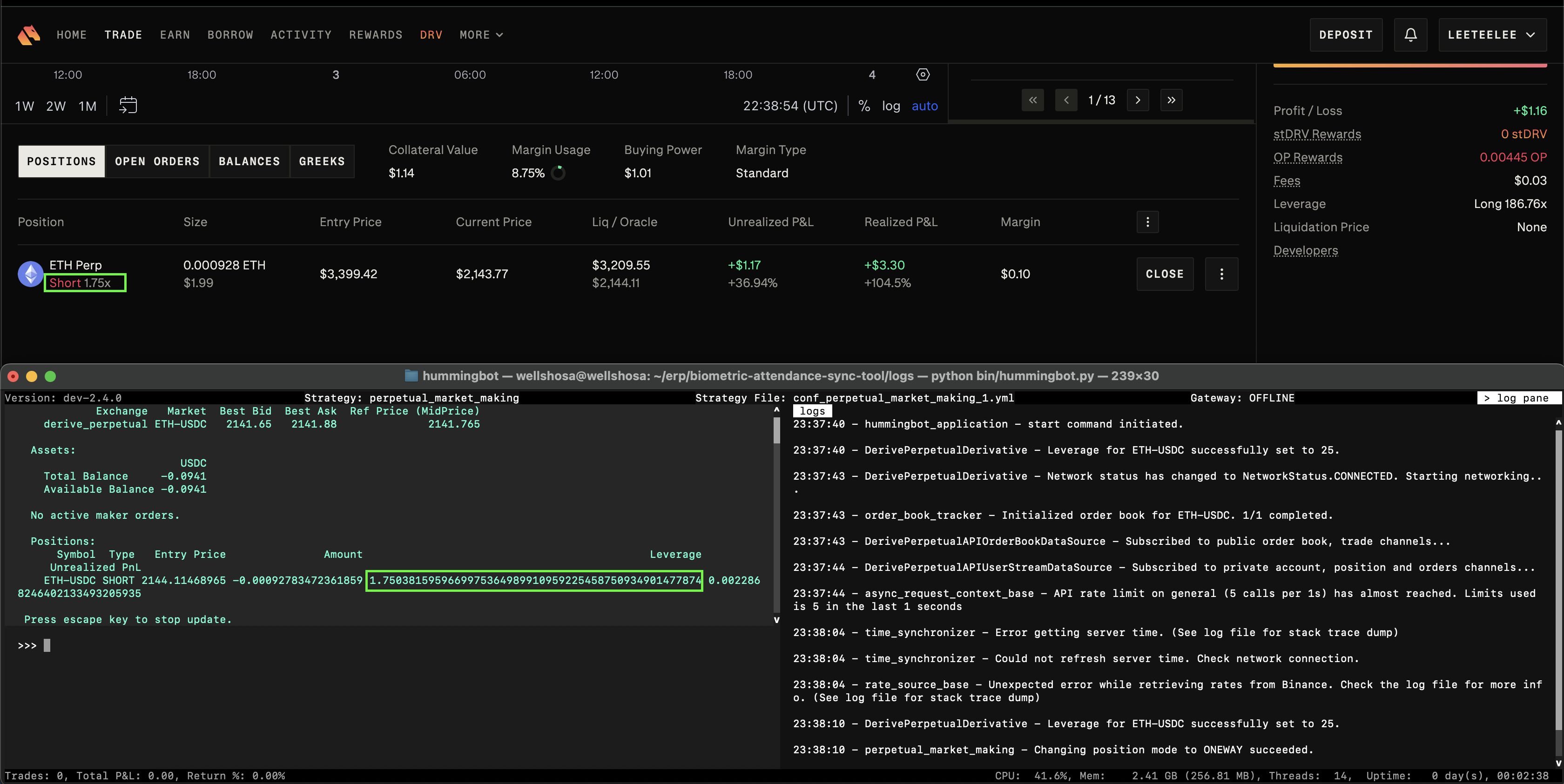
Sample View